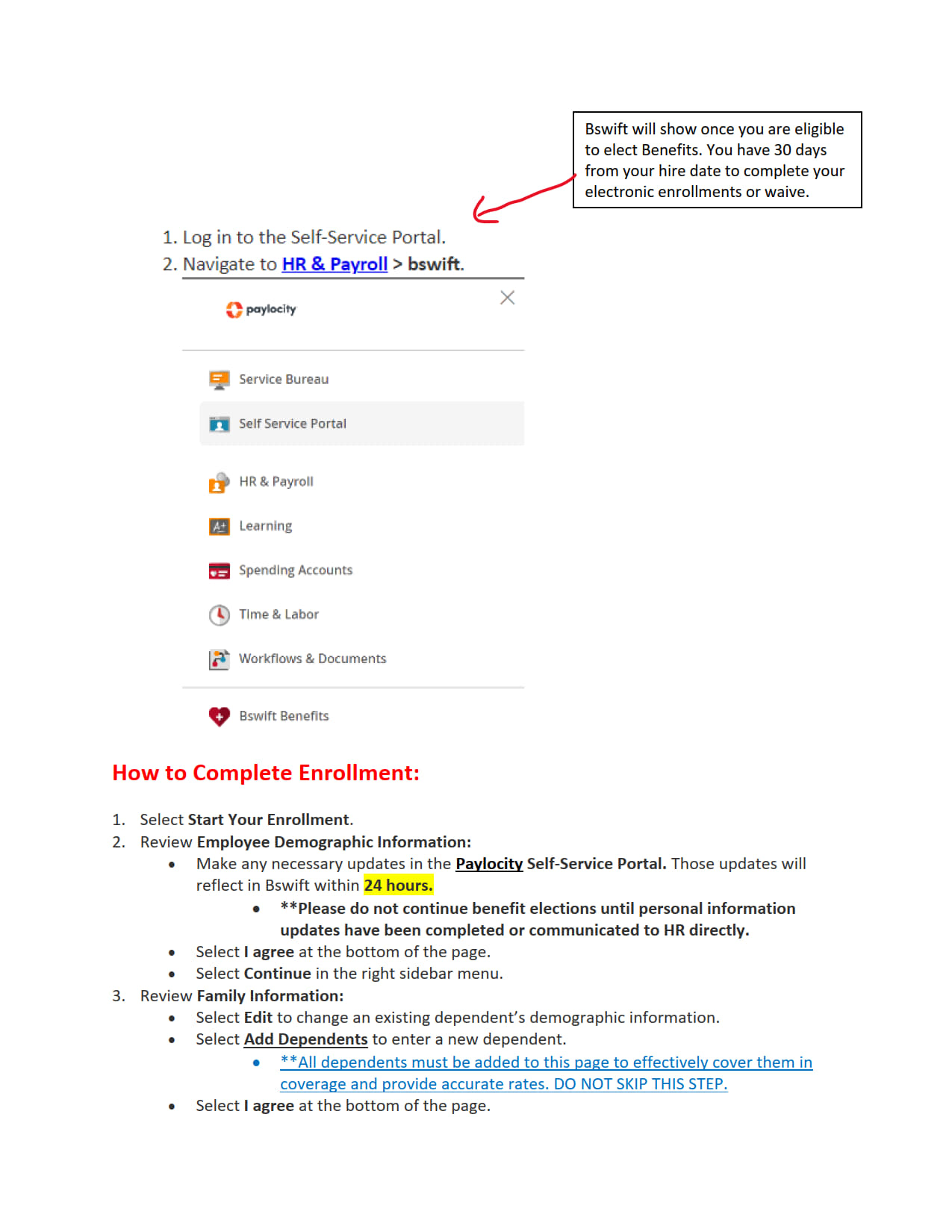
Paylocity Bswift Instructions
* Login through Paylocity as you normally do via a web browser (Chrome, or Safari on your iPhone), or via a computer browser. Benefit elections cannot be completed via the Paylocity App, at this time. There will be a link from the app that will take you right to the web page on your device.
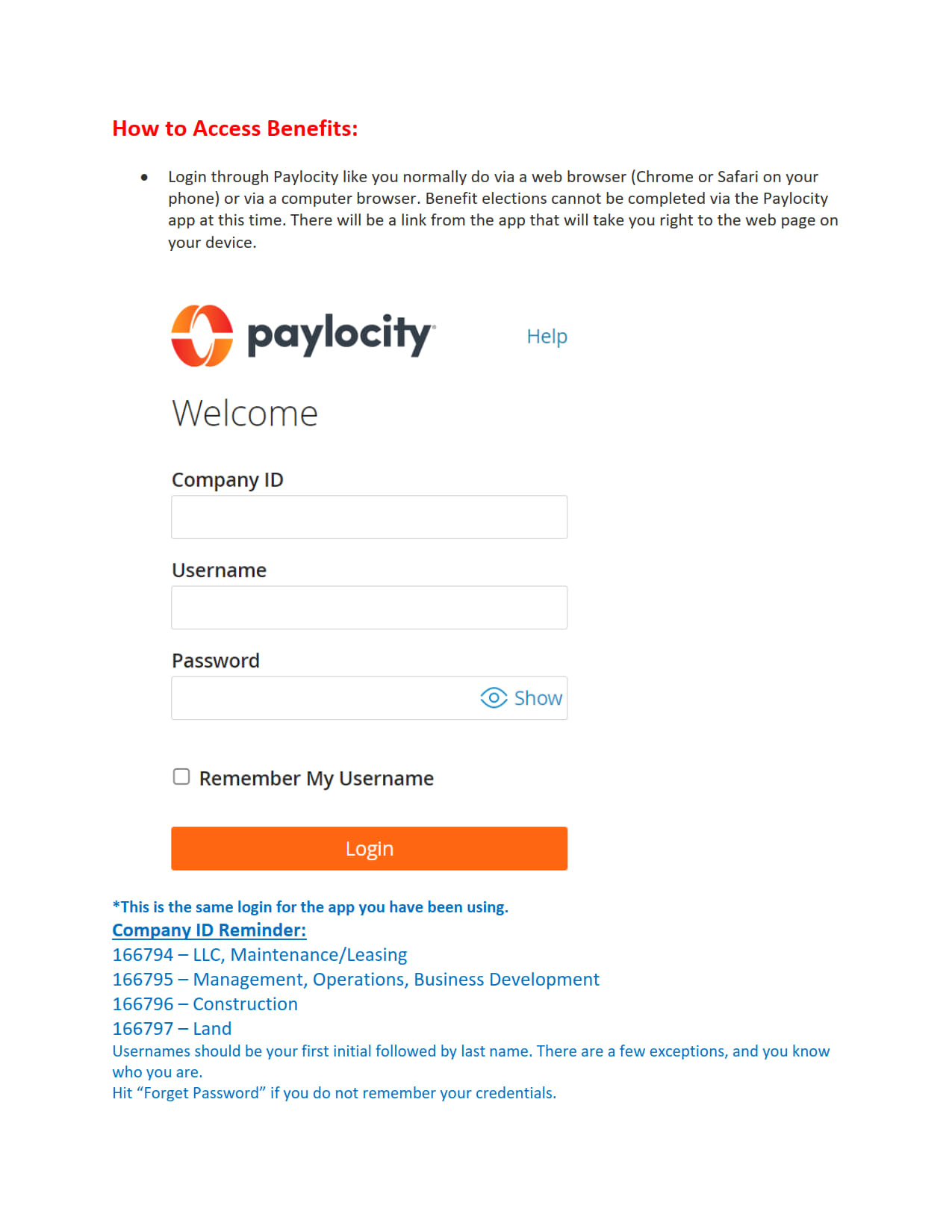
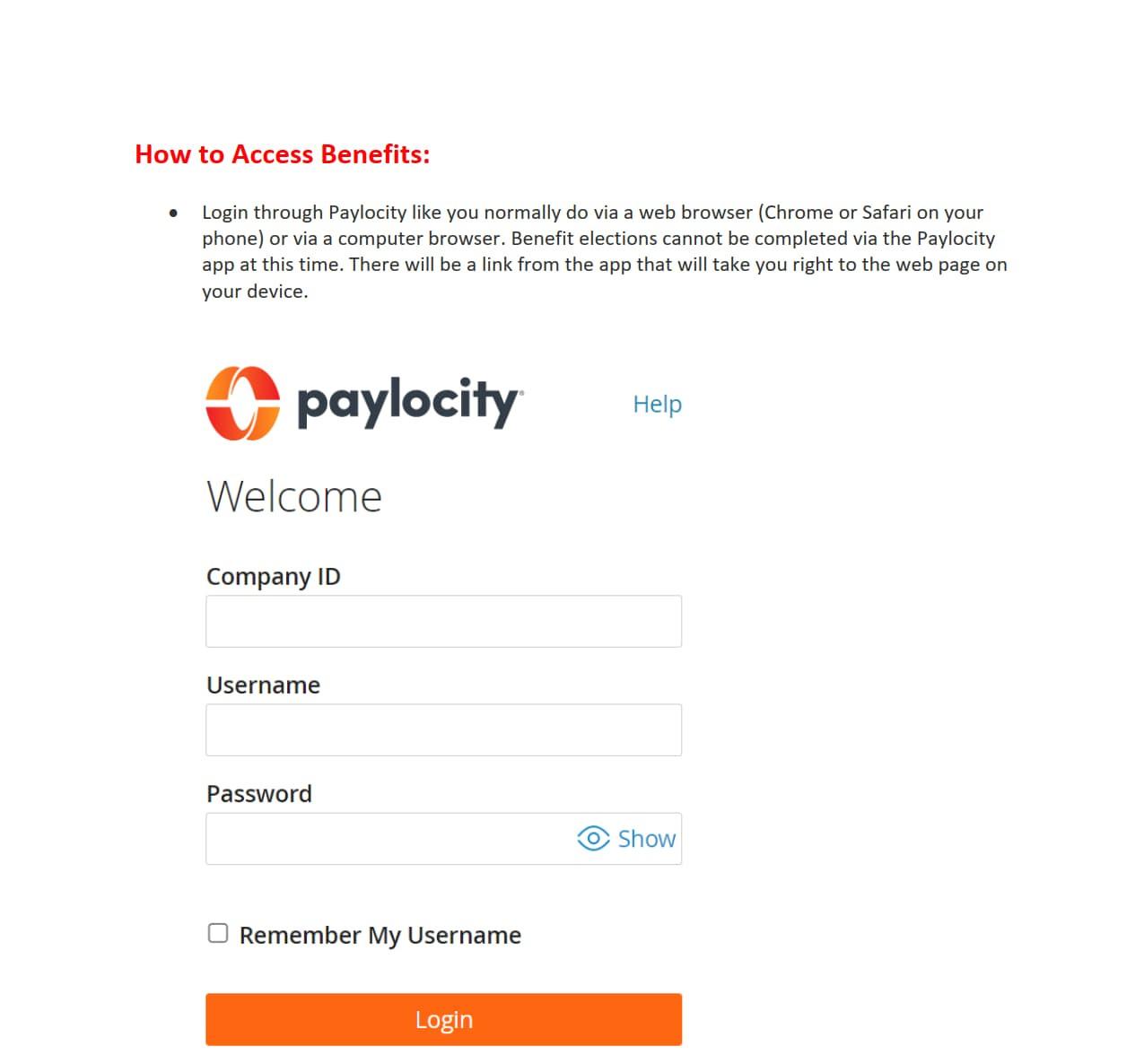
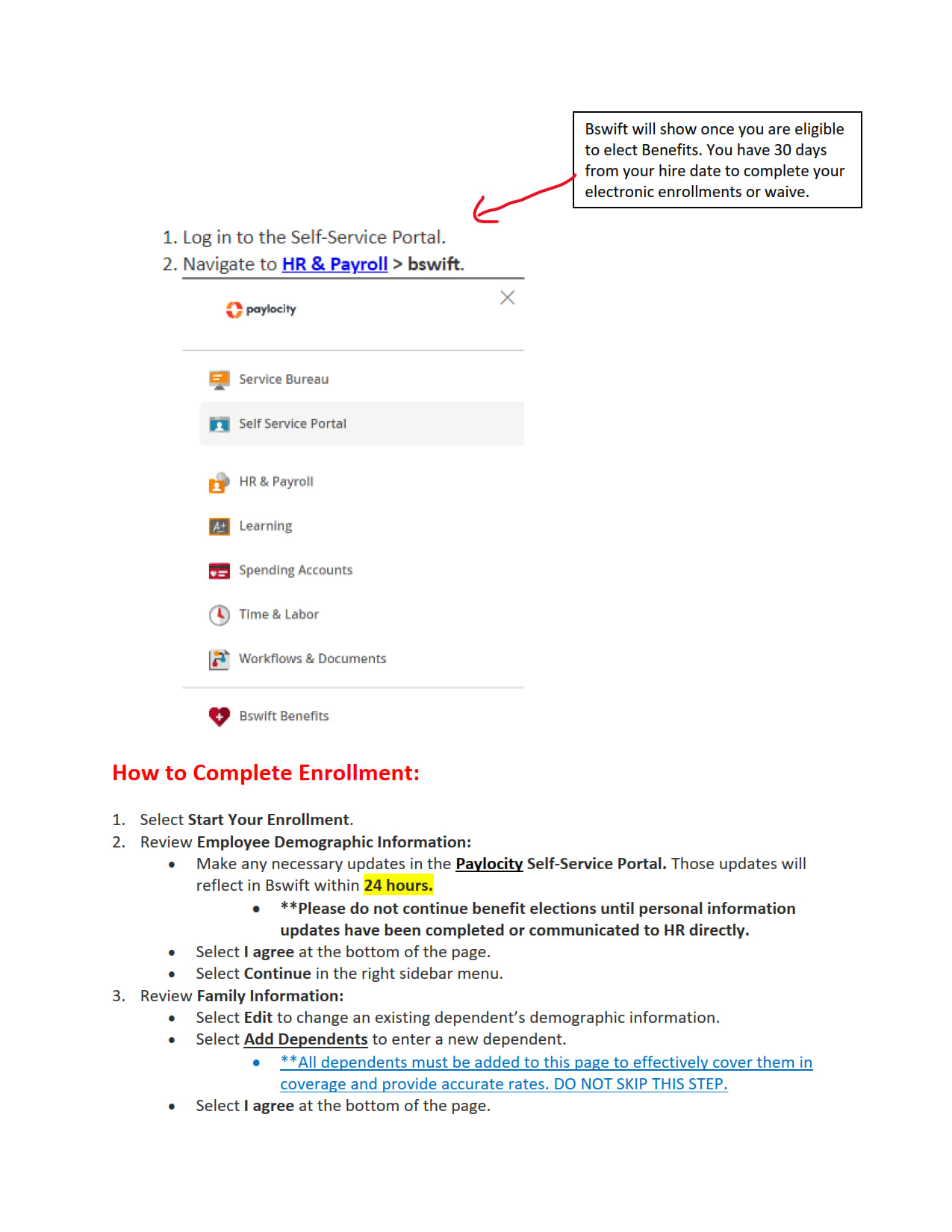
This is the same login you have been using.
Company ID Reminder:
166794 - SC Swiderski, LLC (Leasing)
166795 - SC Swiderski Management (Development & Corporate Ops)
166796 - SC Swiderski Construction (Field Ops & Project Management)
Usernames should be your first initial followed by your last name. There are a few exceptions, and you know who you are. :)
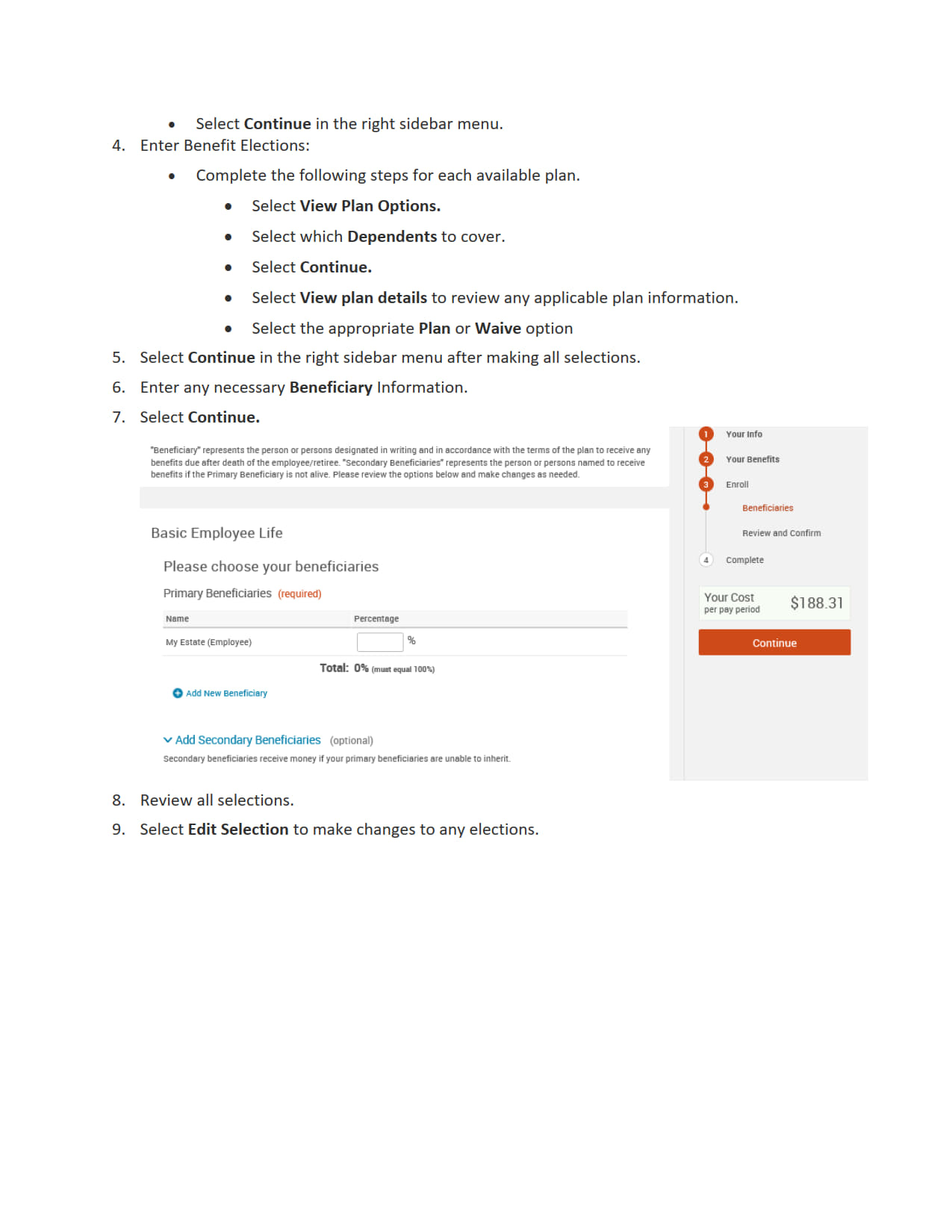
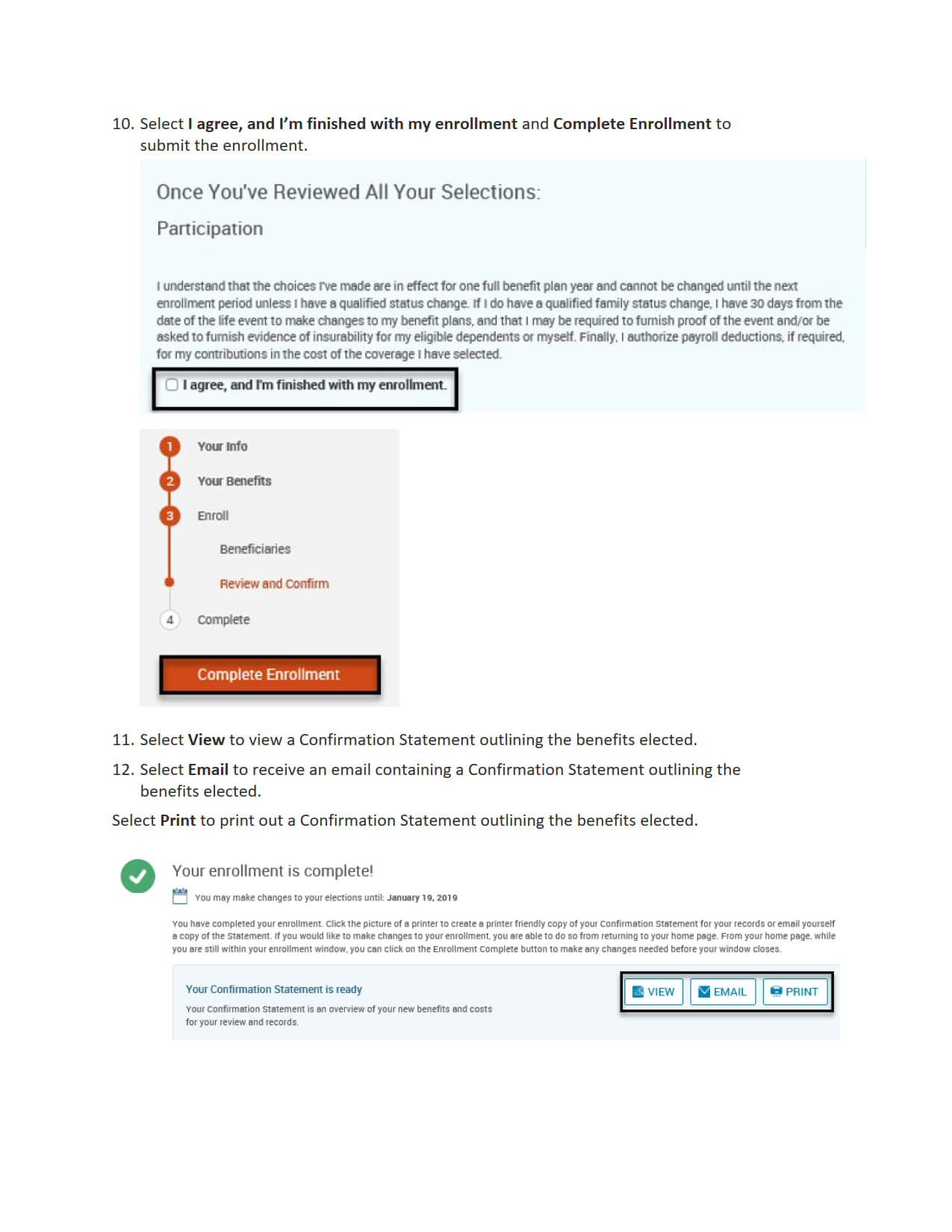
 Select Enroll Now.
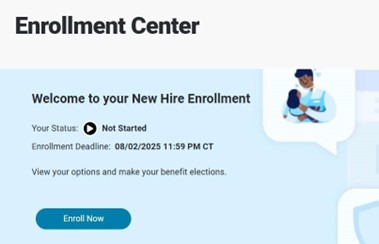 Review Employee Demographic Information:
Make any necessary updates in the Self-Service Portal. Those updates reflect in bswift within 24 hours.
Select I agree at the bottom of the page.
Select Continue in the right sidebar menu.
Review Family Information:
Select Edit to change an existing dependent’s demographic information.
Select Add Dependents to enter a new dependent.
Select I agree at the bottom of the page.
Select Continue in the right sidebar menu.
Enter Benefit Elections:
Complete the following steps for Medical, Dental, and Vision Plans:
Review Employee Demographic Information:
Make any necessary updates in the Self-Service Portal. Those updates reflect in bswift within 24 hours.
Select I agree at the bottom of the page.
Select Continue in the right sidebar menu.
Review Family Information:
Select Edit to change an existing dependent’s demographic information.
Select Add Dependents to enter a new dependent.
Select I agree at the bottom of the page.
Select Continue in the right sidebar menu.
Enter Benefit Elections:
Complete the following steps for Medical, Dental, and Vision Plans:
Select View Plan Options.
Select which Dependents to cover.
Select Continue.
Select View plan details to review any applicable plan information.
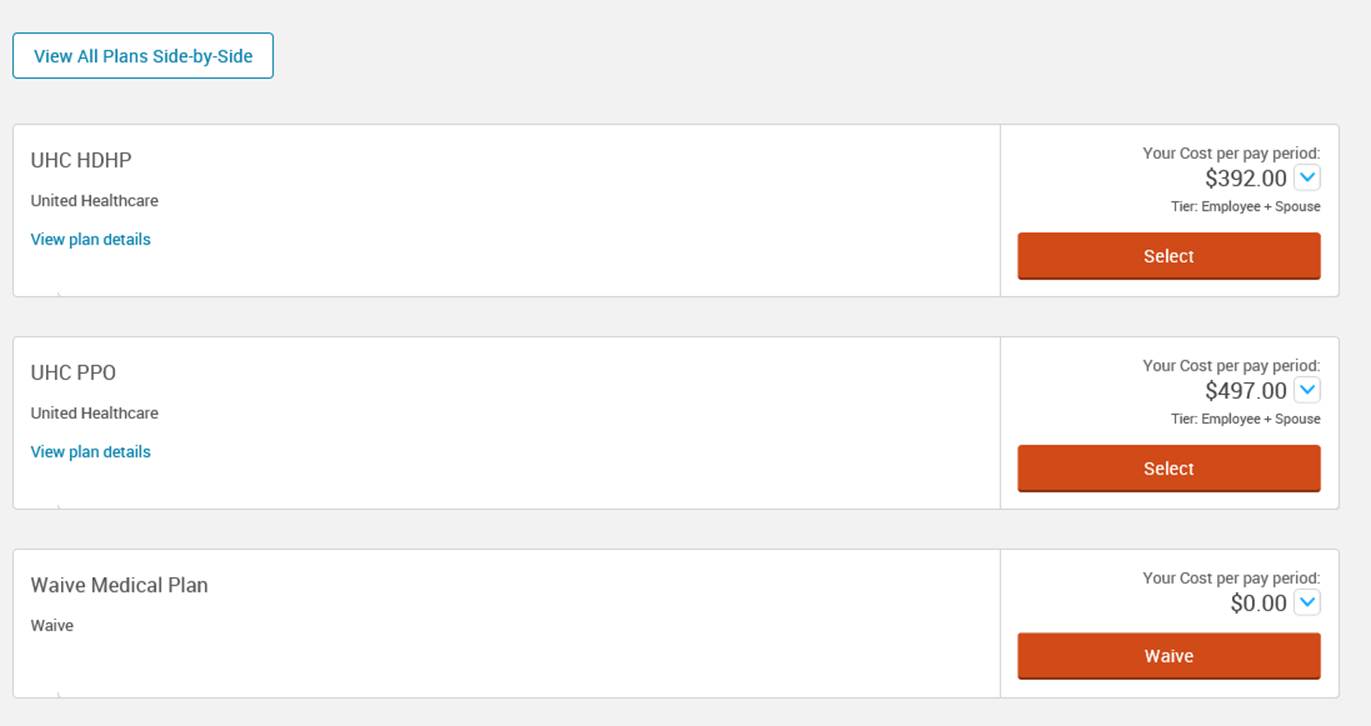
Select the appropriate Plan or Waive option. (Example, ours will have Anthem plans)
This screen will shouw our plans....
Complete the following steps for Health Savings Accounts (HSAs):
Select View Plan Options.
Enter the appropriate Employee Contribution Amount. The allowable contribution amount gets limited by any applicable employer contributions.
Select Calculate Costs to see what the annual amount entered breaks down to on a per-pay basis.
Select Continue.
 Complete the following steps for Basic Life and Accidental Death and Dismemberment (AD&D) Plans:
Employees do not need to make an election in these plans if the coverage is provided by the company. These benefits are typically provided by the employer at no cost to the employee.
Select View Information to see more plan details.
Complete the following steps for Voluntary Employee, Spouse, Domestic Partner, or Child Life and AD&D Plans:
Select View Plan Options.
Select View plan details to review any applicable plan information.
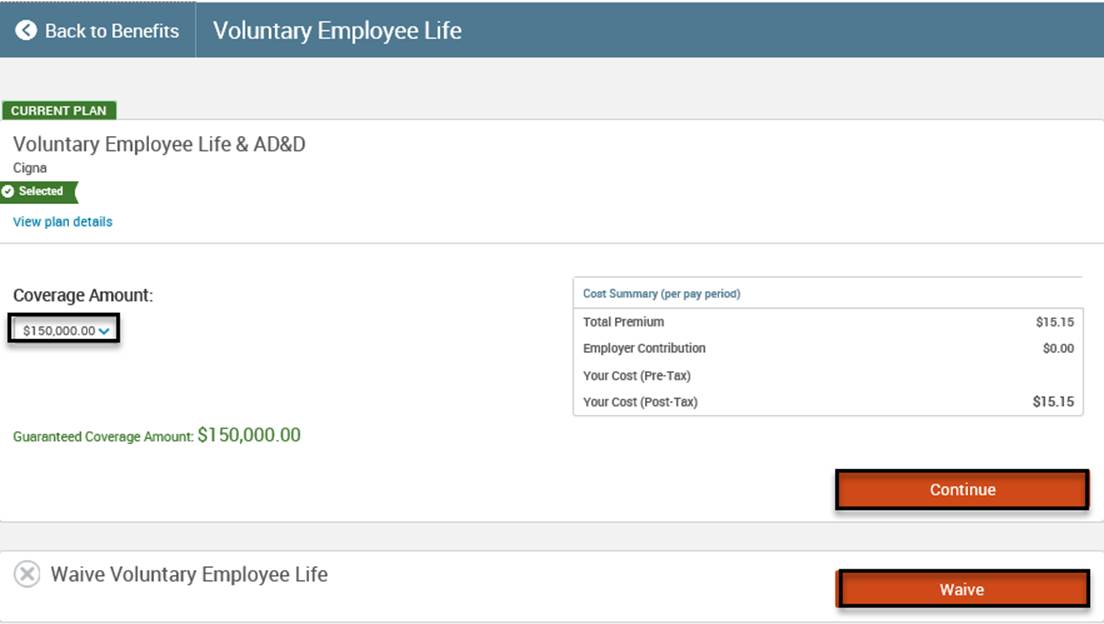
Select appropriate Plan or Waive option.
Select the appropriate Coverage Amount in the dropdown menu.
Select Continue.
 Complete the following steps for Employer Provided Short Term Disability (STD) or Long Term Disability (LTD) Plans:
Employees do not need to make an election in these plans. These benefits are typically provided by the employer at no cost to the employee.
Select View Information to see additional plan details.
Complete the following steps for Voluntary Short Term Disability (STD) or Long Term Disability (LTD) Plans:
Select View Plan Options.
Select View plan details to review any applicable plan information.
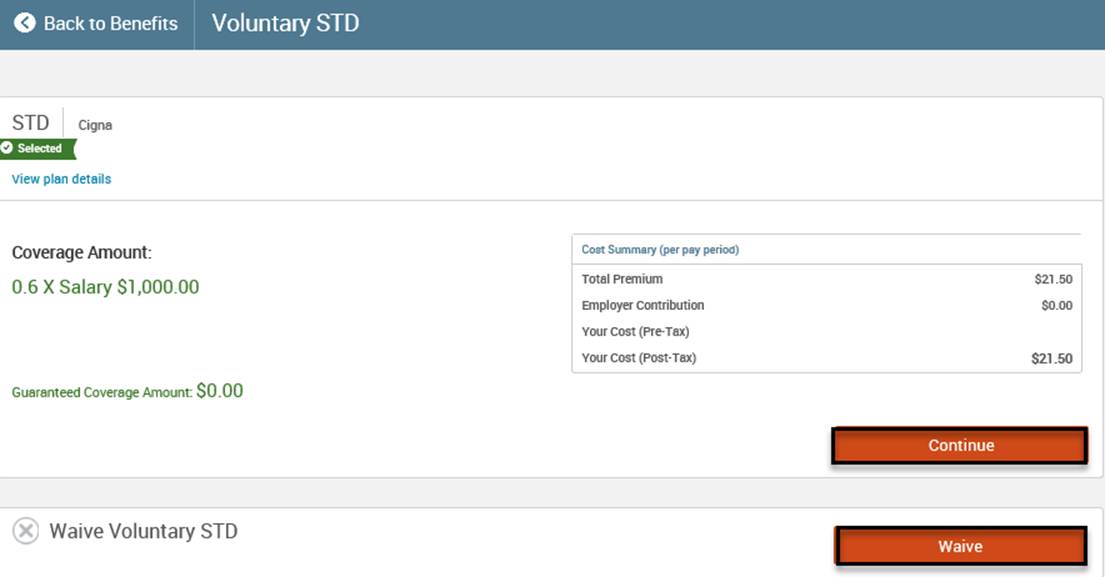
Select the appropriate Plan or Waive option.
Select Continue to enroll in the plan.
 Complete the following steps for Flexible Spending Accounts (Healthcare, Dependent Care, Parking, & Transportation):
Select View Plan Options.
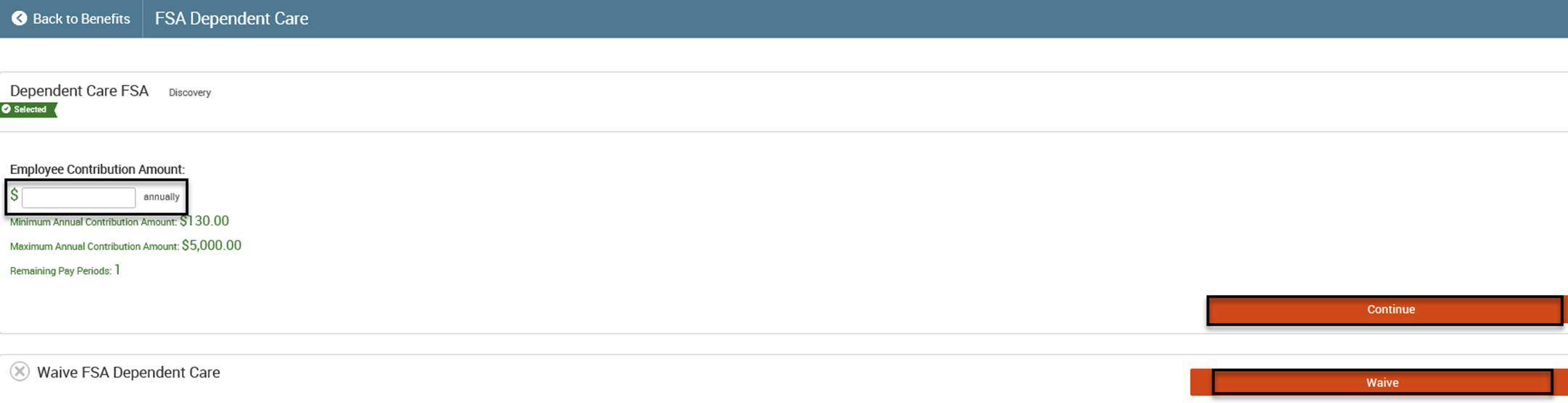
Select the appropriate Plan or Waive option.
Enter the appropriate Employee Contribution Amount.
Select Calculate Costs to see what the annual amount entered breaks down to on a per-pay basis.
Select Continue.
 Complete the following steps for Information Only Plans:
Employees do not enroll in these plans in the bswift system.
Select View Information for more information on how to enroll.
Select Continue in the right sidebar menu after making all selections.
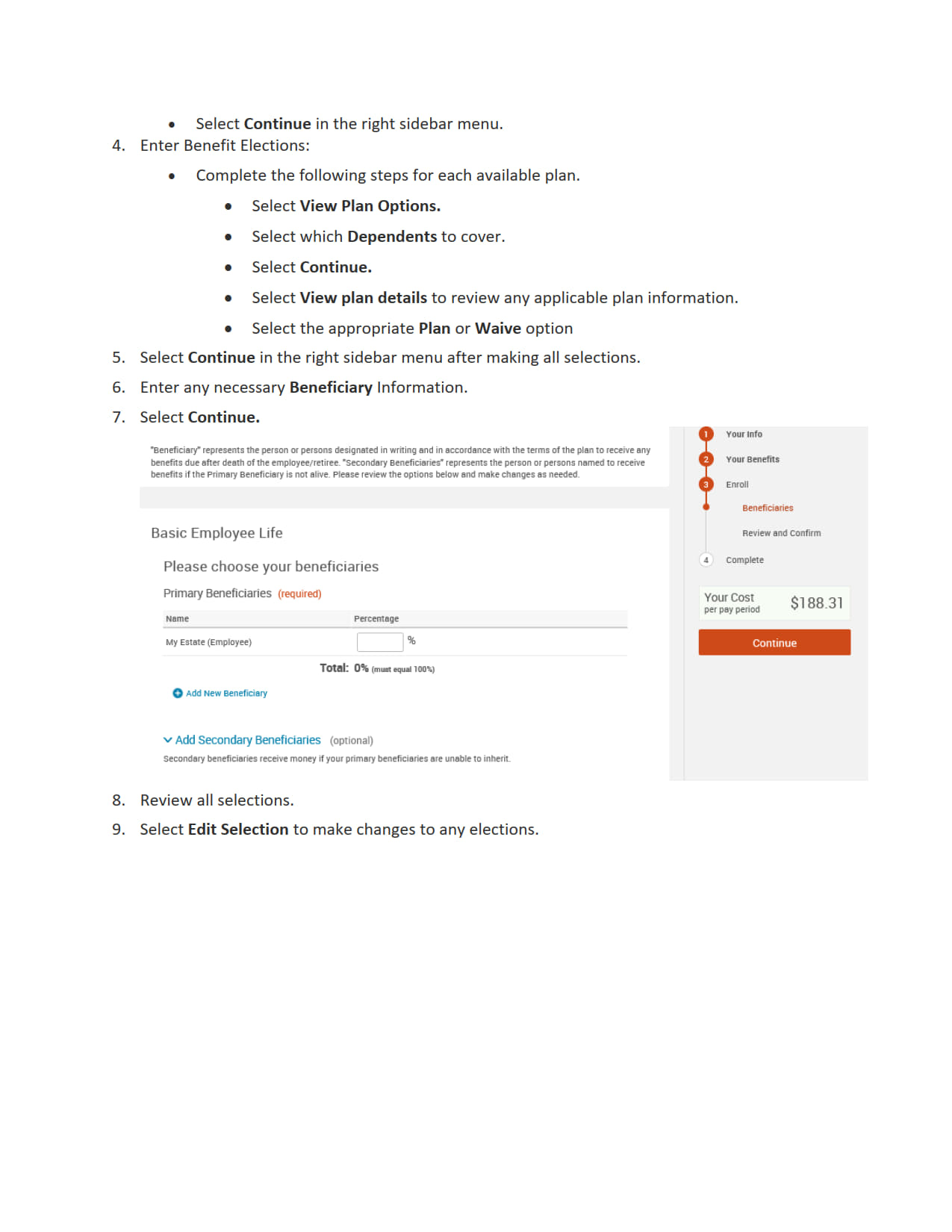
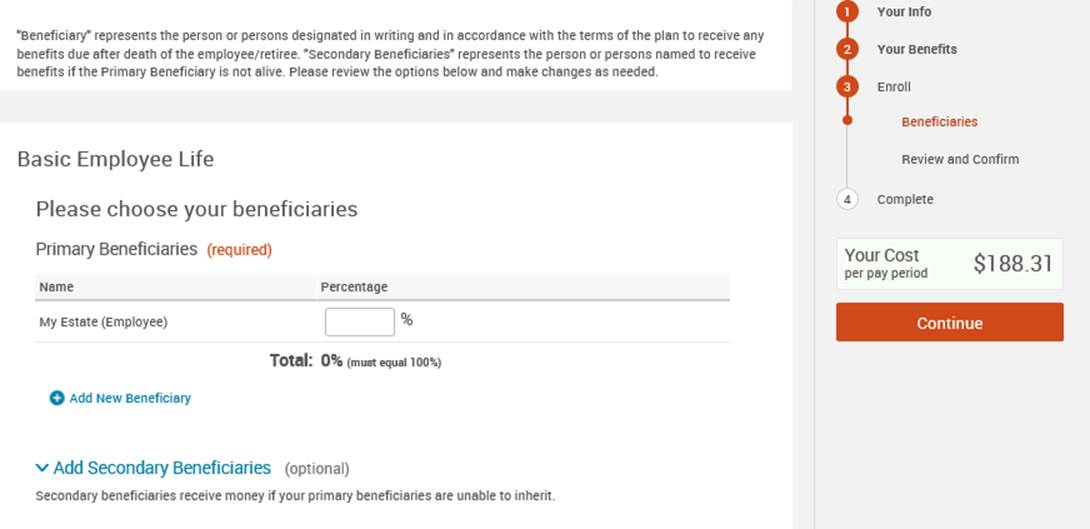
Enter any necessary Beneficiary Information.
Select Continue.
 Review all selections.
Select Edit Selection to make changes to any elections.
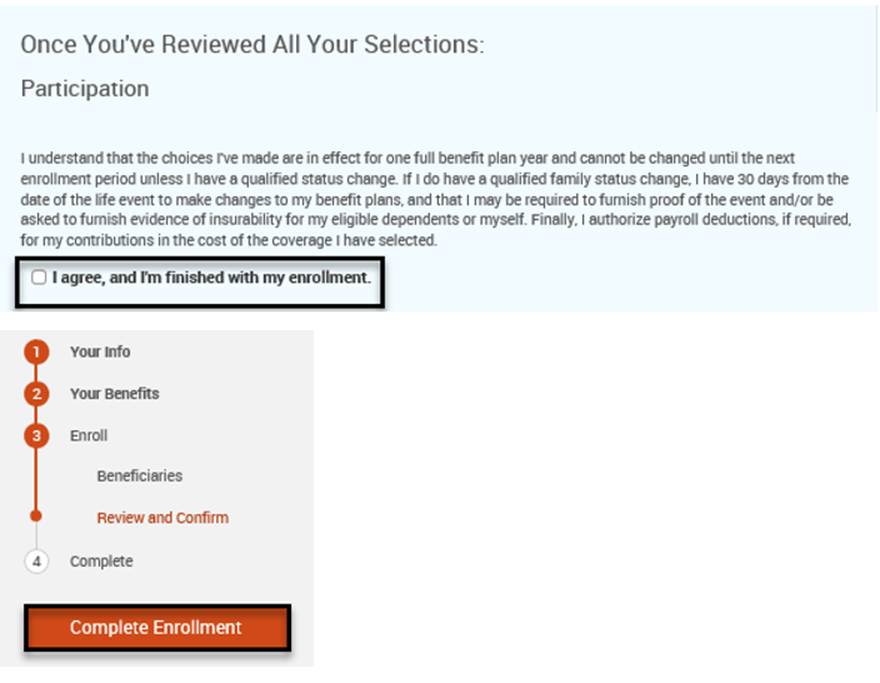
Select I agree, and I’m finished with my enrollment and Complete Enrollment to submit the enrollment.
Review all selections.
Select Edit Selection to make changes to any elections.
Select I agree, and I’m finished with my enrollment and Complete Enrollment to submit the enrollment.
 Select View to view a Confirmation Statement outlining the benefits elected.
Select Email to receive an email containing a Confirmation Statement outlining the benefits elected.
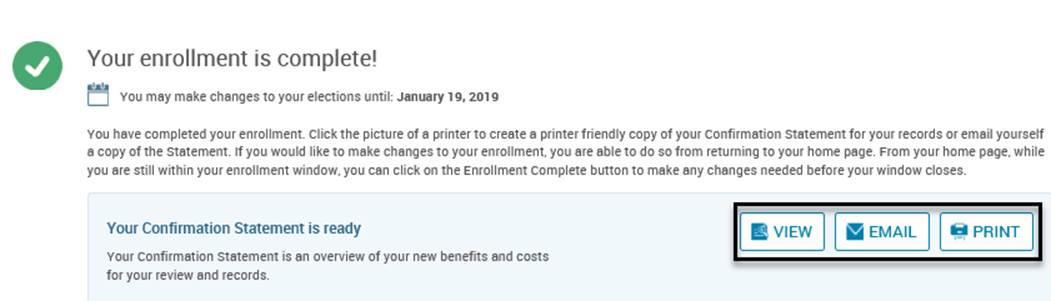
Select View to view a Confirmation Statement outlining the benefits elected.
Select Email to receive an email containing a Confirmation Statement outlining the benefits elected.
Select Print to print out a Confirmation Statement outlining the benefits elected.
Questions?
Reach out to your HR Generalist for more assistance.
Melissa - melissar@scswiderski.com
Katie - katie.popelka@scswiderski.com